

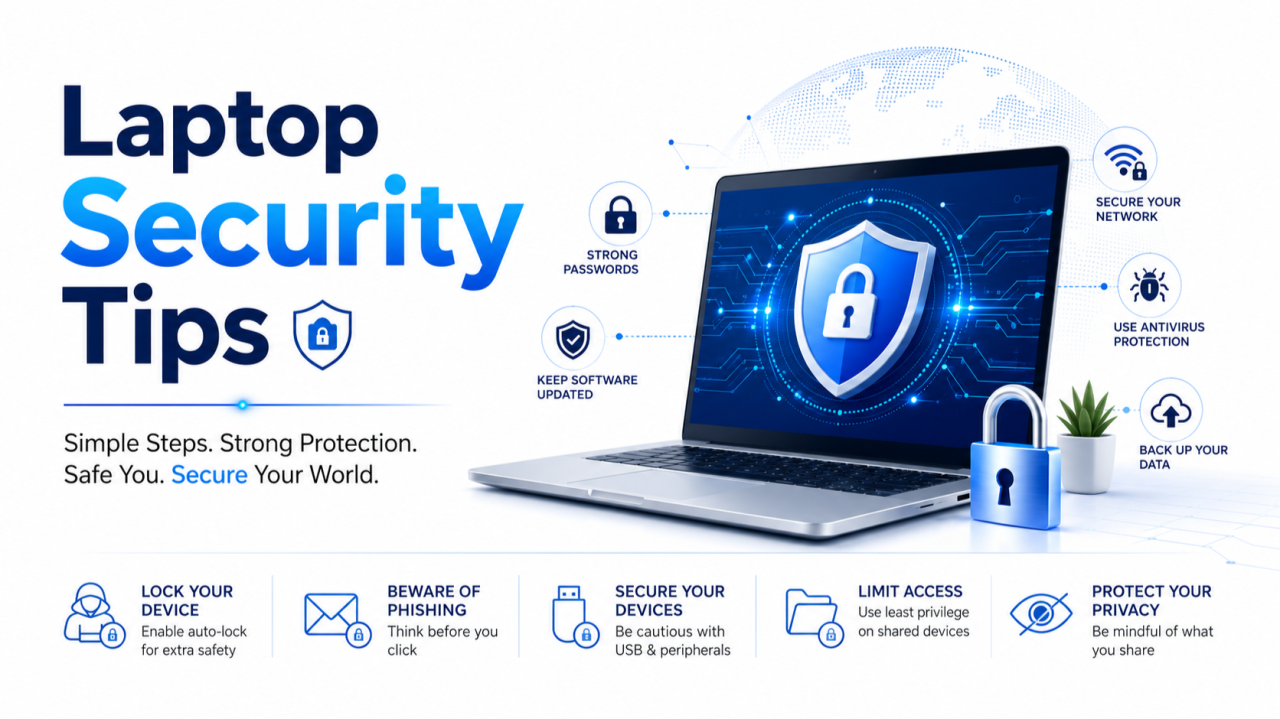
An average computer user might only think about laptop security after something goes wrong. For example: a missing file, a stolen device, a suspicious login notification.
Or the painful realization that years of documents and memories disappeared because there was no backup.
The truth is, securing your laptop isn’t only about preventing hackers. It is about protecting your work, your privacy, your identity, and your peace of mind.
Whether you work remotely, manage client data, run a business, or simply use your laptop for everyday tasks, these simple practices can save you from expensive mistakes and unnecessary headaches.
1. Use a Strong Password
The first line of defense is often the simplest.
Many people still use easy passwords or leave their laptops completely passwordless. If someone gains physical access to such device, they will be having unrestricted access.
A strong password should:
- Be unique
- Be difficult to guess
- Contain a combination of letters, numbers, and symbols
- Not be reused across multiple accounts
Remember, convenience should never come at the expense of security.
2. Encrypt Your Hard Drive
Encryption converts your data into unreadable information that only authorized users can access.
If your laptop gets lost or stolen, encryption ensures that whoever possesses the device cannot simply remove the drive and browse through your files.
Modern operating systems provide built-in encryption:
- BitLocker on Windows
- * FileVault on macOS
3. Cover Your Webcam
It sounds like something from a movie, but unauthorized webcam access is possible.
A simple webcam cover costs very little and provides an extra layer of privacy. Even a small sliding cover can prevent accidental exposure and provide peace of mind.
Not every security measure needs to be complicated.
4. Use a Privacy Screen Protector: This works for both mobile devices and laptops
Working in public places comes with a hidden risk: shoulder surfing.
People sitting beside you can easily view emails, spreadsheets, passwords, or sensitive documents.
Privacy screen protector narrows the viewing angle so only the person directly in front of the screen can see the contents clearly.
For professionals handling confidential information, this accessory is worth considering.
5. Keep Your Operating Sysytem and applications up-to-date
Software updates are not merely about new features.
Many updates contain critical security patches that address newly discovered vulnerabilities.
Postponing updates indefinitely creates opportunities for cybercriminals to exploit known weaknesses.
Operating systems, browsers, antivirus software, and applications should all be updated regularly.
“If it works, don’t touch it” does not always apply to cybersecurity.
6. Install Reliable Antivirus Protection
Threats continue to evolve.
Viruses, ransomware, spyware, and malicious downloads can compromise your system and your data.
Reliable antivirus software provides:
- Real-time protection
- Malware detection
- Website filtering
- Email scanning
- Network security
While no solution offers 100% protection, combining antivirus software with safe browsing habits significantly reduces risk.
7. Back Up Your Data
One of the biggest misconceptions in IT is: “My laptop is fine. I don’t need backups.”
Backups help protect you from hardware failures, accidents, theft, ransomware attacks etc.
Backups ensure that your important files remain available when disaster strikes.
Consider maintaining:
- Cloud backups
- External hard drive backups
- Automated backup schedules
8. Enable Device Tracking
Many modern laptops offer location and recovery features.
Windows has “Find My Device,” and Apple devices integrate with the Find My network.
These services can help:
- Locate lost devices
- Lock them remotely
- Erase sensitive data if necessary
9. Use a VPN on Untrusted Networks
Public Wi-Fi networks in airports, hotels, restaurants, and cafés are convenient but can expose users to security risks.
A Virtual Private Network (VPN) encrypts your internet traffic and helps protect your data from prying eyes.
VPNs are particularly useful when:
- Working remotely
- Accessing business resources
- Traveling
- Using public Wi-Fi
10. Physically Secure Your Device
Cybersecurity often gets the spotlight, but physical theft remains one of the oldest threats.
A Kensington lock cable can secure a laptop to a desk or fixed object, making theft more difficult.
Organizations, universities, libraries, and co-working spaces still use these solutions because sometimes the simplest defenses are the most effective.
What simple laptop security habit do you think people ignore the most?